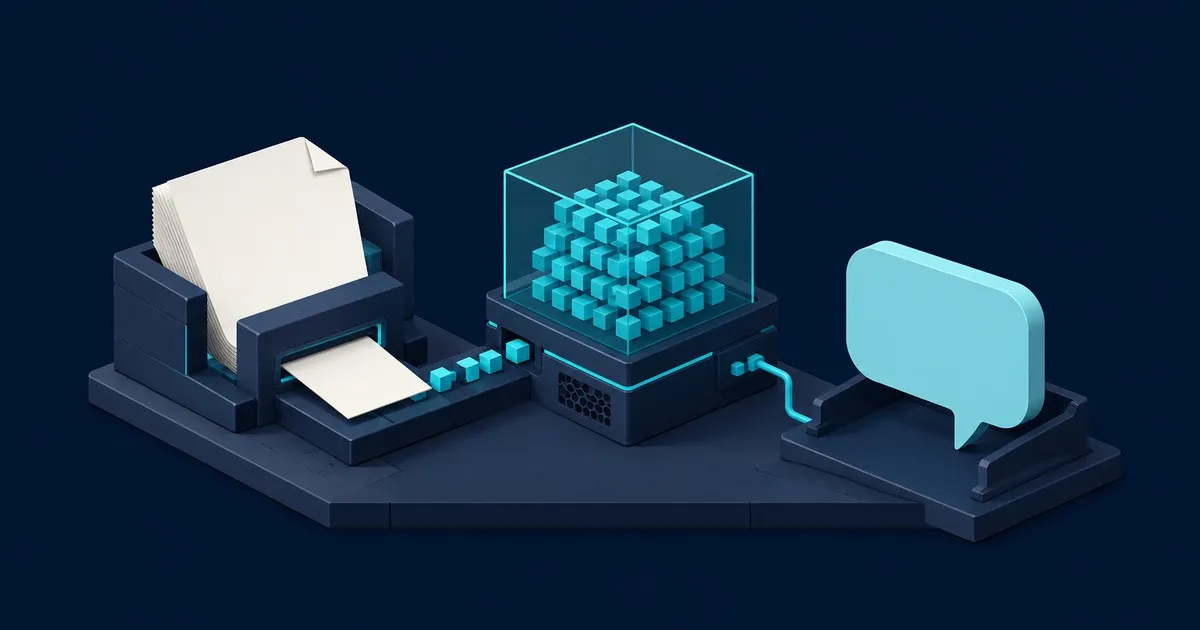
Open WebUI RAG is the retrieval-augmented generation pipeline built into document upload. By default, each file is extracted to text, split into 1,000-character chunks with 100 characters of overlap, embedded locally with sentence-transformers/all-MiniLM-L6-v2 and stored in Chroma. At question time the 3 closest chunks are retrieved for the prompt. All of it is adjustable under Settings > Admin > Documents.
A PDF upload can succeed while the model still cannot find the paragraph you need. Start with the upload response: it can arrive while extraction and embedding are still running. File acceptance is only the beginning of the pipeline. Open WebUI’s API documentation makes that asynchronous boundary explicit.
Related: Open WebUI and Local Models: How the Pieces Fit Together.
What happens after document upload
In a retrieval-augmented generation (RAG) workflow, Open WebUI extracts text, divides it into chunks, generates vectors with an embedding model, and stores them in a vector database. At question time, retrieval selects relevant passages for the chat model’s context. Uploading supplies reference material; it does not fine-tune the model’s weights. Open WebUI’s RAG essentials describe this sequence.
An Ollama chat model and an embedding model serve different jobs: generation and search representation. Check the embedding configuration separately from whether ordinary chat works. Open WebUI supports local embeddings and an Ollama embedding engine. Embedding setup
PDF, office-document and image handling depends on the extraction engine. A scanned page needs OCR to become searchable text. Inspect extracted text before adjusting retrieval: missing table headings or scrambled reading order cannot be repaired by choosing a larger chat model. Open WebUI documents extraction options including Tika and Docling. Document extraction
Upload a file or build reusable Knowledge
For an isolated question, drag the document into the chat input, wait for processing, then ask about a specific passage. Chat attachments are the simplest entry point. Attachment workflow
For reusable documents, follow the Knowledge setup:
- Open Workspace > Knowledge, select Create, and name the collection.
- Upload the documents and wait for processing to finish.
- Select the collection with
#in chat, or attach it under Workspace > Models > Edit. - Ask a question with a known answer and inspect the supporting passage.
Choose Focused Retrieval, the default, for questions over larger collections. Full Context sends the complete extracted document into context, bypassing semantic retrieval. It suits short reference documents, provided they fit alongside conversation history and the answer. These attachment modes are documented under Knowledge retrieval modes.
Attachment location also matters. In native function-calling mode, model-attached Knowledge depends on the model calling its knowledge tools. Chat attachments have separate File Context controls. Check Builtin Tools, the enabled knowledge tools and actual tool calls when a collection seems ignored. File Context versus Builtin Tools explains the distinction.
In Settings > Admin > Documents, review chunk size, chunk overlap and Top K. Chunk size uses characters or tokens according to the selected text splitter. Increasing Top K brings more passages into consideration; preserve room in the model’s context budget. Hybrid search adds BM25 keyword matching and reranking to vector retrieval. Compare changes against known questions before adopting them. RAG configuration
Open WebUI RAG default settings
A fresh install ships the values below, taken from the environment variable reference and checked in October 2026, when v0.11.4 was the newest release. Each maps to a field in Settings > Admin > Documents.
| Setting | Variable | Default |
|---|---|---|
| Embedding engine | RAG_EMBEDDING_ENGINE | Empty (local SentenceTransformers); also ollama, openai, azure_openai |
| Embedding model | RAG_EMBEDDING_MODEL | sentence-transformers/all-MiniLM-L6-v2 |
| Vector database | VECTOR_DB | chroma (pgvector on the slim image) |
| Text splitter | RAG_TEXT_SPLITTER | character |
| Chunk size / overlap | CHUNK_SIZE / CHUNK_OVERLAP | 1000 / 100 |
| Top K | RAG_TOP_K | 3 |
| Hybrid search | ENABLE_RAG_HYBRID_SEARCH | False |
| Extraction engine | CONTENT_EXTRACTION_ENGINE | Empty (built-in loader) |
| Full context | RAG_FULL_CONTEXT | False |
The embedding, chunking, retrieval and extraction variables in that table are ConfigVars: Open WebUI reads each from the environment on first launch, then stores the value in its database. Editing CHUNK_SIZE in a compose file and restarting later usually changes nothing, because the stored value wins. Change it in the Admin panel, or set ENABLE_PERSISTENT_CONFIG=False (default True) so the environment takes precedence, accepting that Admin edits then revert on restart. The same trap catches OLLAMA_BASE_URL, as the Ollama connection guide explains.
The slim image departs from most of this table. Its v0.11.4 release notes state that it carries no embedding or reranking model, so knowledge needs OpenAI, Ollama or Azure OpenAI embeddings. PDF, Word and presentation uploads fail unless an external document extractor is configured, while text, Markdown, CSV, HTML and XML are read directly. Knowledge search there needs PostgreSQL with pgvector. Confirm which tag you run against the Docker install guide before debugging a failed PDF.
Match chunk size and Top K to the model’s context
The defaults suit a small local model. Retrieved chunks, system prompt, history and answer share one context window, so a larger window can take larger chunks and more of them. Open WebUI’s RAG troubleshooting guide gives these starting points:
| Deployment | Chunk size | Overlap | Top K | Full Context |
|---|---|---|---|---|
| Local models, 8K context or less | 1000 | 100 | 3 to 5 | Off |
| Mixed local and cloud | 1500 | 200 | 10 | Not specified |
| Cloud models, 32K+ context | 2000 | 200 | 15 to 25 | Consider for documents under about 20K tokens |
For the local and cloud profiles the guide also recommends the token splitter with Markdown header splitting on, which makes chunk size a token count.
Check the backend’s own limit before raising Top K. The guide says Ollama defaults to a 4096-token context on GPUs under 24 GiB, 32768 between 24 and 48 GiB, and 262144 at 48 GiB and above. Five 1,000-token chunks exceed 4096 tokens before the question is counted. Raise the model’s context under Settings > Admin > Models > Advanced Params; the RAG documentation suggests 8192 at minimum and preferably more than 16000.
Uploaded document not appearing in answers
When an upload never shows up as a source, or the model answers as if nothing were attached, check the pipeline in this order. Each step comes from the RAG troubleshooting guide.
- Processing finished. The status endpoint returns
pending,completedorfailed. Adding a still-pending file to Knowledge through the API returns a 400 “content provided is empty” error. - Text was extracted. Preview the upload. Blank or truncated text means the extractor failed; change engines or enable OCR before touching retrieval settings.
- The embedding model loads.
400: 'NoneType' object has no attribute 'encode'means the embedding model is misconfigured or only partly downloaded. Re-save it in Settings > Admin > Documents, and for Ollama or API engines confirm the service is reachable. - The model actually searched. Only Legacy function calling injects model-attached knowledge up front. In Default and Native modes the model must call a tool such as
query_knowledge_bases, which it cannot do with Builtin Tools off. Enable the Knowledge Base category under Builtin Tools, attach the collection in the chat, or add a system prompt telling the model to search, and prefer a model with reliable tool calling. - The context held it. Retrieved text beyond the backend’s window is cut. Raise the context length or lower Top K.
- The file’s own index exists. Files in a knowledge base are also indexed individually. If one attached file returns no sources, run Reindex Knowledge Base Vectors in Settings > Admin > Documents; it re-embeds everything and can cost money on a paid embedding API. Re-upload a file that belongs to no knowledge base.
The metric that matters
For ingestion, measure upload-to-indexed latency:
upload_to_indexed_seconds = time_completed_status_observed - time_upload_started
This proposed client-side metric includes transfer and background processing. It beats upload-request latency because a quick HTTP response can precede a long indexing job. The documented completed state means file processing succeeded; attaching the file and verifying retrieval remain separate steps. Processing-status troubleshooting
Chart p50/p95/p99 across comparable document batches, with failures alongside them. Separately, keep a golden set of questions and expected passages. Measure recall@k as relevant passages found among the first k results divided by all labeled relevant passages. Recall measures evidence retrieval; reviewing the answer remains necessary. Recall definition
Wiring it up
Run this upload probe with requests and mlflow installed. Set OPEN_WEBUI_URL, OPEN_WEBUI_API_KEY, DOCUMENT_PATH and MLFLOW_TRACKING_URI. It creates a file and records elapsed processing time using MLflow’s tracking API. The timeout and polling values are example client settings, not Open WebUI limits.
import os
import time
import mlflow
import requests

base = os.environ["OPEN_WEBUI_URL"].rstrip("/")
headers = {"Authorization": f"Bearer {os.environ['OPEN_WEBUI_API_KEY']}"}
mlflow.set_tracking_uri(os.environ["MLFLOW_TRACKING_URI"])
mlflow.set_experiment("open-webui-ingestion")

with mlflow.start_run():
    started = time.monotonic()
    with open(os.environ["DOCUMENT_PATH"], "rb") as document:
        response = requests.post(
            f"{base}/api/v1/files/", headers=headers,
            files={"file": document}, timeout=60,
        )
    response.raise_for_status()
    file_id = response.json()["id"]
    deadline = time.monotonic() + 300
    while time.monotonic() < deadline:
        response = requests.get(
            f"{base}/api/v1/files/{file_id}/process/status",
            headers=headers, timeout=30,
        )
        response.raise_for_status()
        status = response.json()["status"]
        if status == "completed":
            mlflow.log_metric(
                "upload_to_indexed_seconds", time.monotonic() - started
            )
            break
        if status == "failed":
            raise RuntimeError("Document processing failed")
        time.sleep(2)
    else:
        raise TimeoutError("Document processing deadline exceeded")
For API-managed Knowledge, wait for completion before calling POST /api/v1/knowledge/{id}/file/add with {"file_id": file_id}. Uploading alone does not complete that association. Knowledge API workflow
Measure chat time-to-first-token (TTFT) separately: this probe stops before generation and does not submit a retrieval query.
What you’ll see
A healthy chart has a repeatable latency distribution for the same document mix, successful processing, and stable golden-set retrieval. Treat the following as diagnostic hypotheses, not measured results:
| Pattern | Next check |
|---|---|
| Upload response stays fast; indexing p99 rises | Embedding contention, batch size and processing failures |
| Indexing completes; scanned documents miss evidence | OCR output and extracted text |
| Recall drops after replacing the embedding model | Reindex the corpus with the new model |
| Relevant passages arrive; answers still fail | Context budget and answer-generation behavior |
Open WebUI’s RAG troubleshooting guide covers these failure boundaries, including GPU OOM during embedding and reindexing after embedding changes. For ongoing monitoring, SentryML’s observability coverage is relevant follow-on reading.
Caveats
Document mix can create false alarms: compare scanned PDFs separately from plain text. Polling adds requests and delays observation of completion. Failed uploads produce no success-latency sample in this probe, so track failed runs separately. If exporting to Prometheus, exclude document IDs and filenames from metric labels to avoid cardinality blowup. Instrumentation guidance
Keep expected answers outside the indexed corpus to avoid evaluation label leakage. Version the golden set and remap passage labels when chunk boundaries change. Check where extraction, embedding and generation execute before uploading sensitive documents; a locally hosted interface does not establish the entire data path.
Retrieved documents can contain prompt injection. Treat their text as untrusted evidence and enforce access and tool permissions outside the model. OWASP’s prevention guidance covers indirect injection; GuardML’s defensive engineering coverage provides related reading.
FAQ
what embedding model does open webui use for rag
Open WebUI uses sentence-transformers/all-MiniLM-L6-v2 by default, running locally through SentenceTransformers. Set the embedding engine to ollama, openai or azure_openai to use a served model instead, such as nomic-embed-text through Ollama. The slim image has no local model, so it needs one of those engines. Reindex every document after switching.
which vector database does open webui use
Open WebUI uses Chroma by default, or pgvector on the slim image. VECTOR_DB also accepts elasticsearch, mariadb-vector, milvus, opengauss, opensearch, pinecone, qdrant, s3vector, oracle23ai, weaviate and valkey. Multi-worker deployments should move off Chroma’s embedded SQLite storage, which is not fork-safe, to pgvector, Qdrant, Milvus or a Chroma HTTP server.
is there a file size limit for open webui uploads
Not by default. RAG_FILE_MAX_SIZE (set in megabytes) and RAG_FILE_MAX_COUNT both default to unlimited, and the count cap applies only to chat uploads, never to knowledge bases. FOLDER_MAX_FILE_COUNT defaults to 100 files per folder, and Office or EPUB files that expand far beyond their compressed size are refused.
how do i enable hybrid search in open webui
Switch on Hybrid Search in Settings > Admin > Documents, or set ENABLE_RAG_HYBRID_SEARCH=True before the first launch. It combines BM25 keyword matching with vector search and can rerank candidates with a CrossEncoder model. By default the reranker keeps 3 results and the relevance threshold is 0.0, so no result is filtered out by score.
can open webui rag read scanned pdfs
Only after OCR. Image-only pages have no text layer for the default loader to read, so they come back empty. Enable PDF Extract Images (OCR), which is off by default, or set CONTENT_EXTRACTION_ENGINE to an engine such as tika, docling, mistral_ocr or paddleocr_vl. With the default engine, the troubleshooting guide also asks for pypdf 6.0.0 or newer.


